

Notch
When the song changes
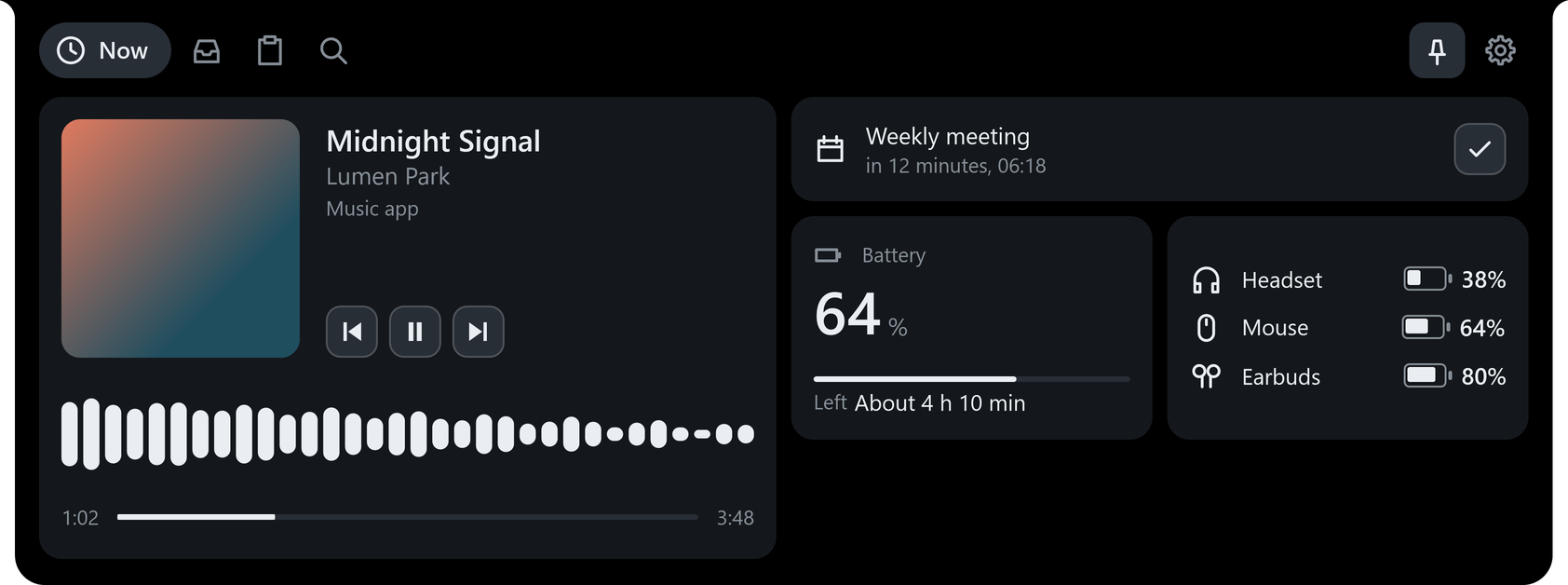
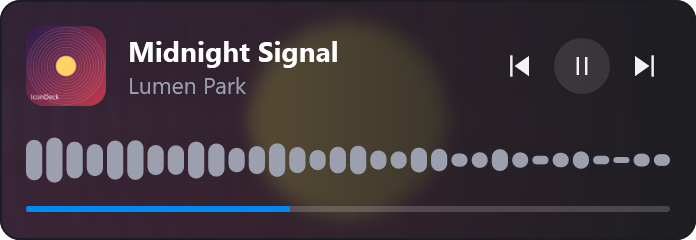
It glows in the album’s colors and shows the title, with bars that move to the beat.
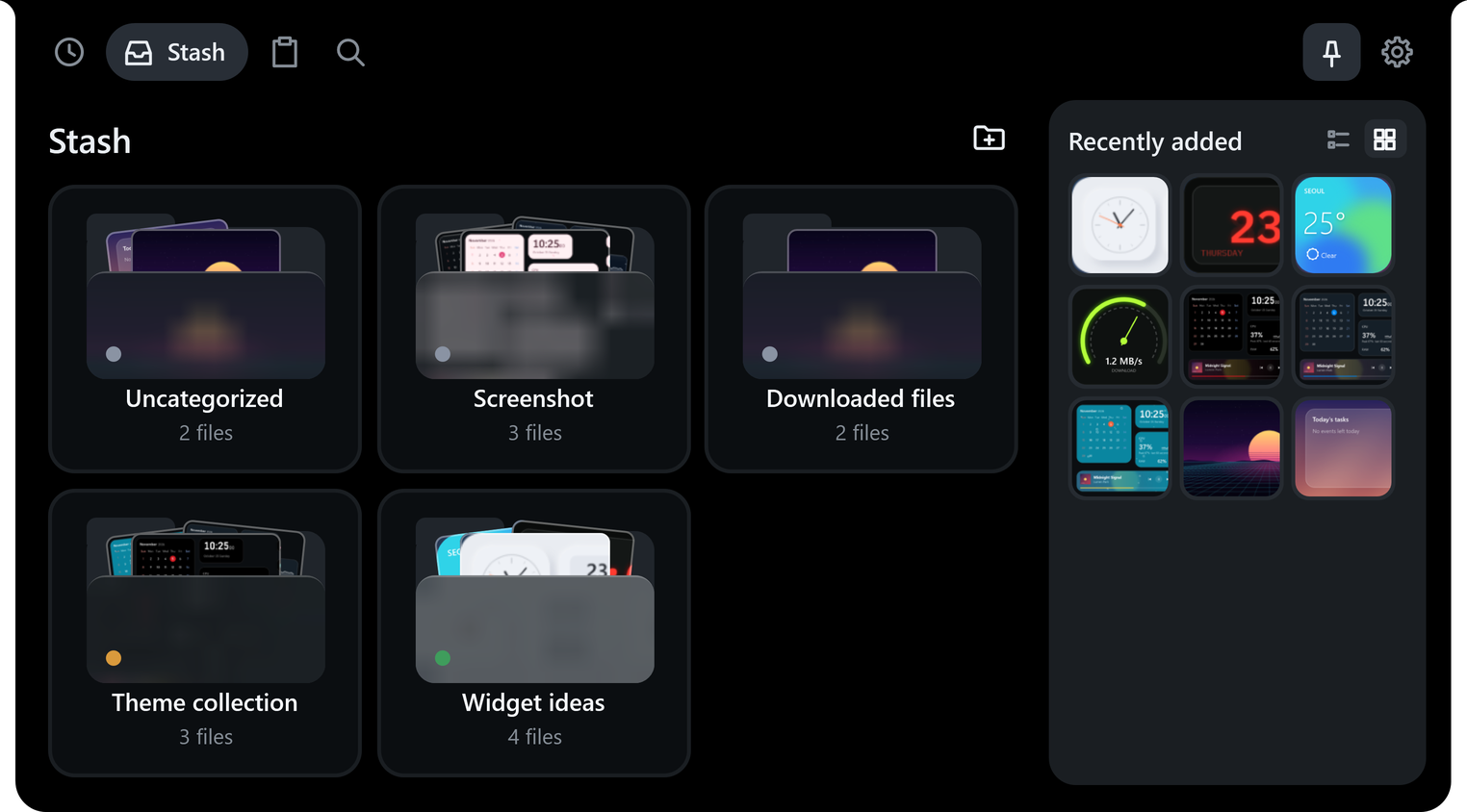
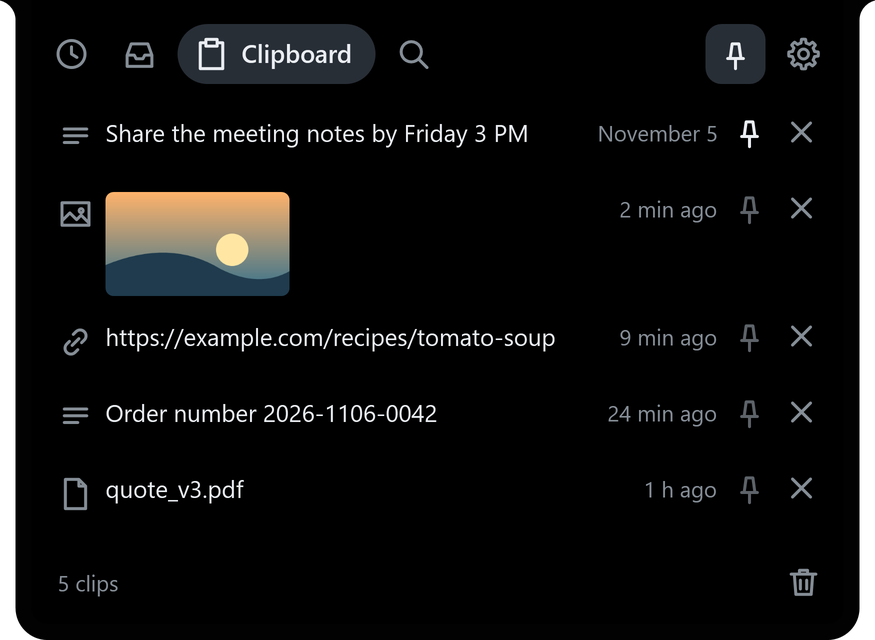
The notch is the real app. Songs, files and clipboard items are examples.
A Windows app that restyles your desktop icons and sorts them into folders. A notch, all kinds of widgets and everything else you need to decorate your desktop.
Windows 10 (2004 or later) and Windows 11, 64‑bit
Put several icons into one folder and it shows as a small grid. Click it to open.
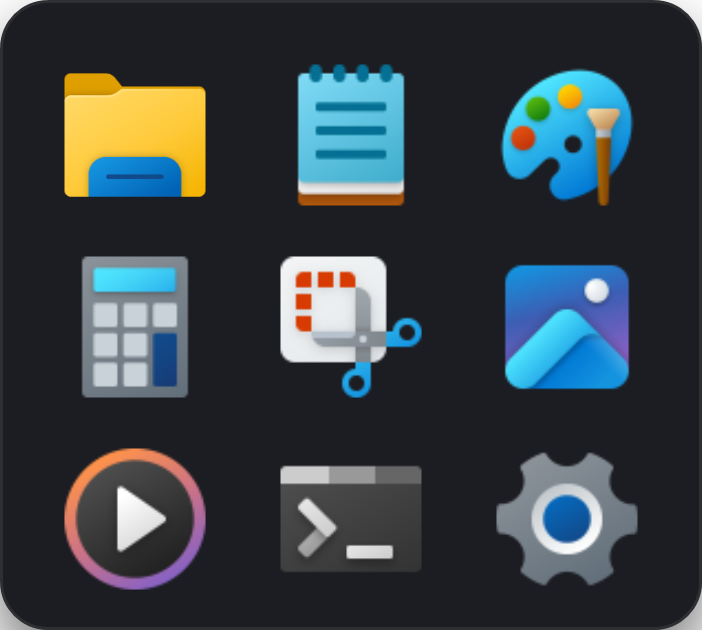
Click the folder
Choose a favorite photo as a widget background and click “Apply the background color and photo to all widgets” to apply it everywhere at once. Parts with content, like your schedule or calendar, get their own backing so they stay readable over the photo.
Click an example or add your own photo. You can drag it here too. Your photo stays in this browser and is never uploaded.
Notch
It glows in the album’s colors and shows the title, with bars that move to the beat.
The notch is the real app. Songs, files and clipboard items are examples.






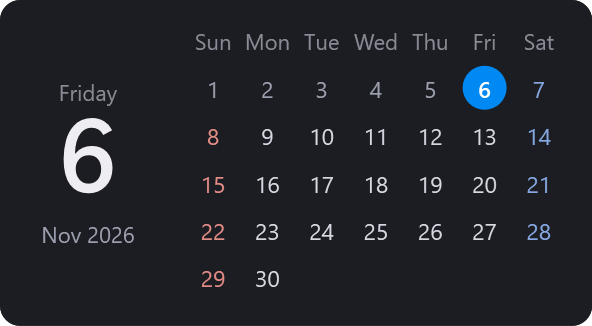
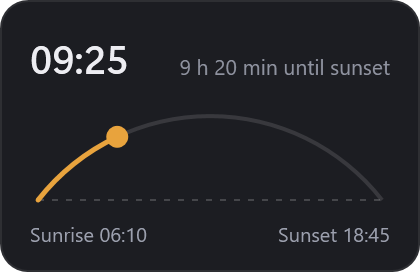
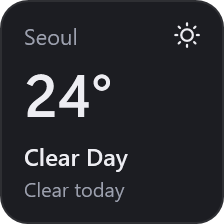
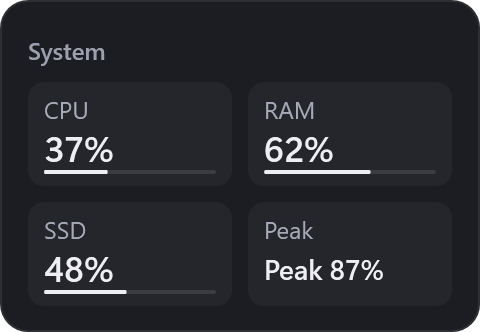
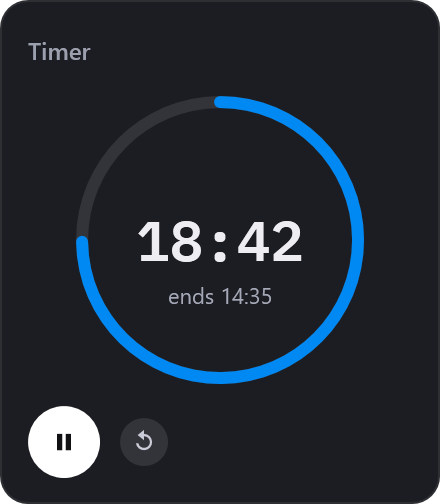
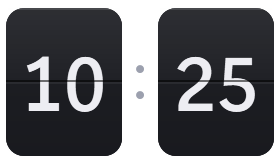
13 widgets come built in: music, clock, calendar, to-do, routines, game dailies, timer, notes, a per-app volume mixer, system monitor, small cards for weather or the date, live notifications and blank cards for decoration. Each widget comes in several designs, and you can change its size, colors and font.
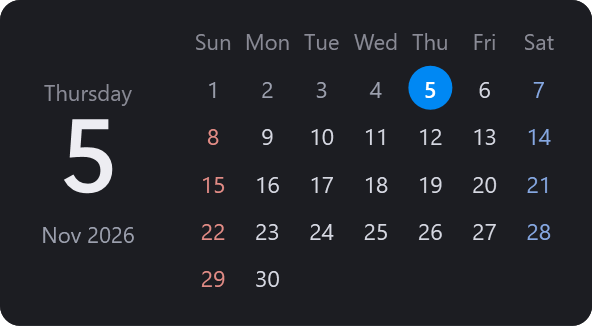
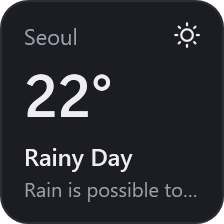
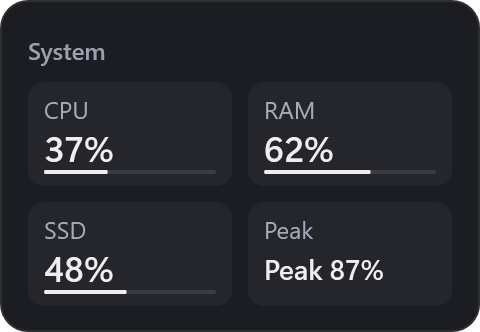
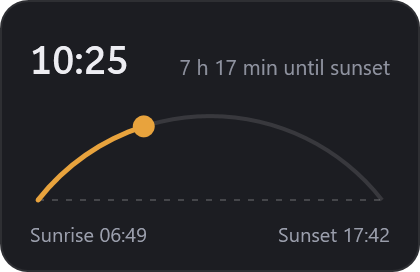
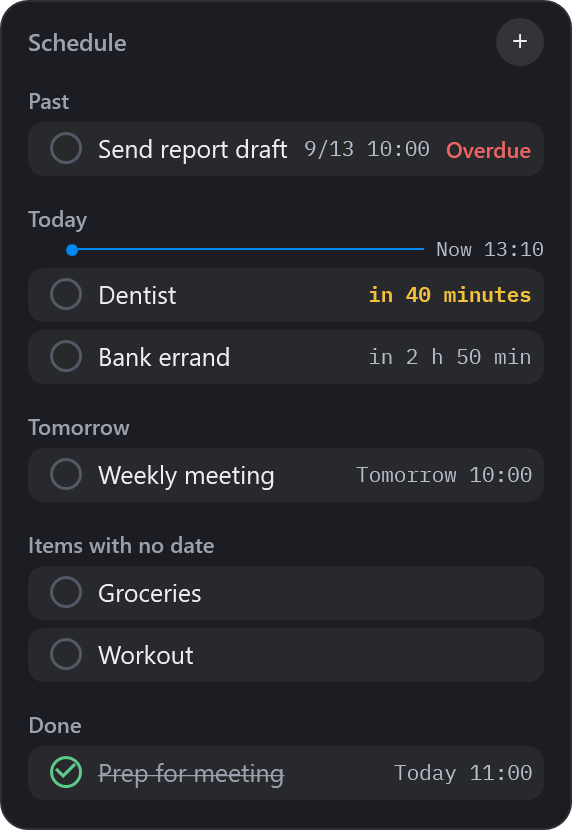
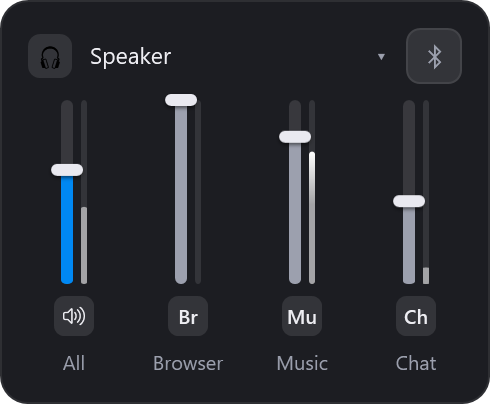
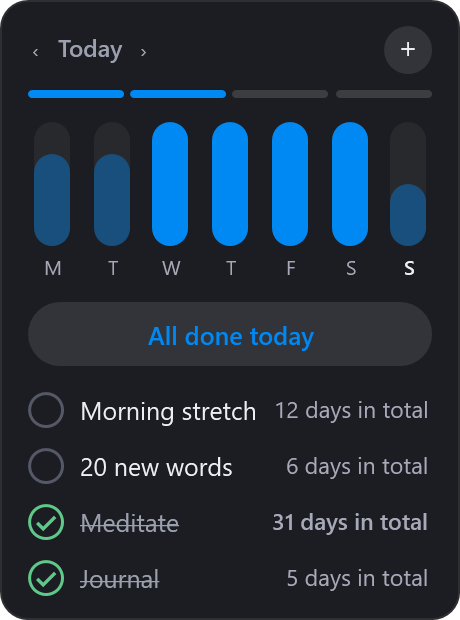
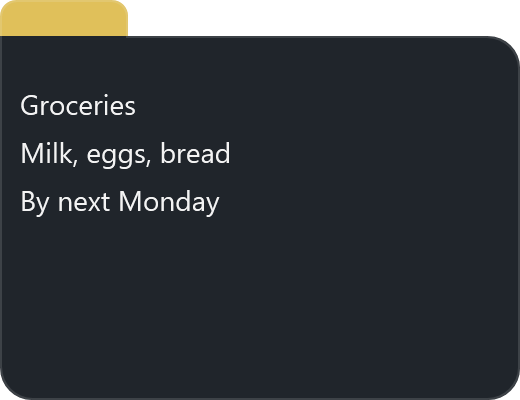
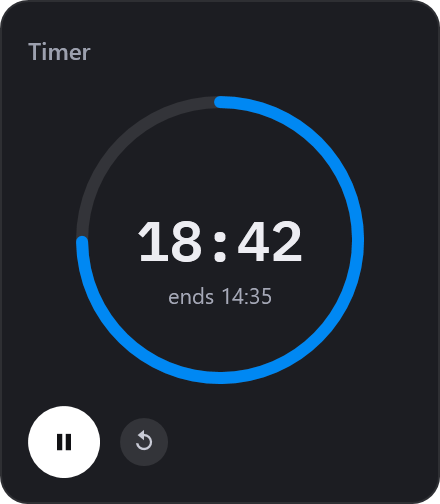
All real app screens. You can show the same widget more than once.
Live notifications may be discontinued or change how they work without notice, depending on each streaming platform’s circumstances (policies, terms, address changes).
Pick a theme and the design of your icons and widgets changes at once. Seven themes are built in, and snow and petals fall in the Winter and Cherry blossom themes.
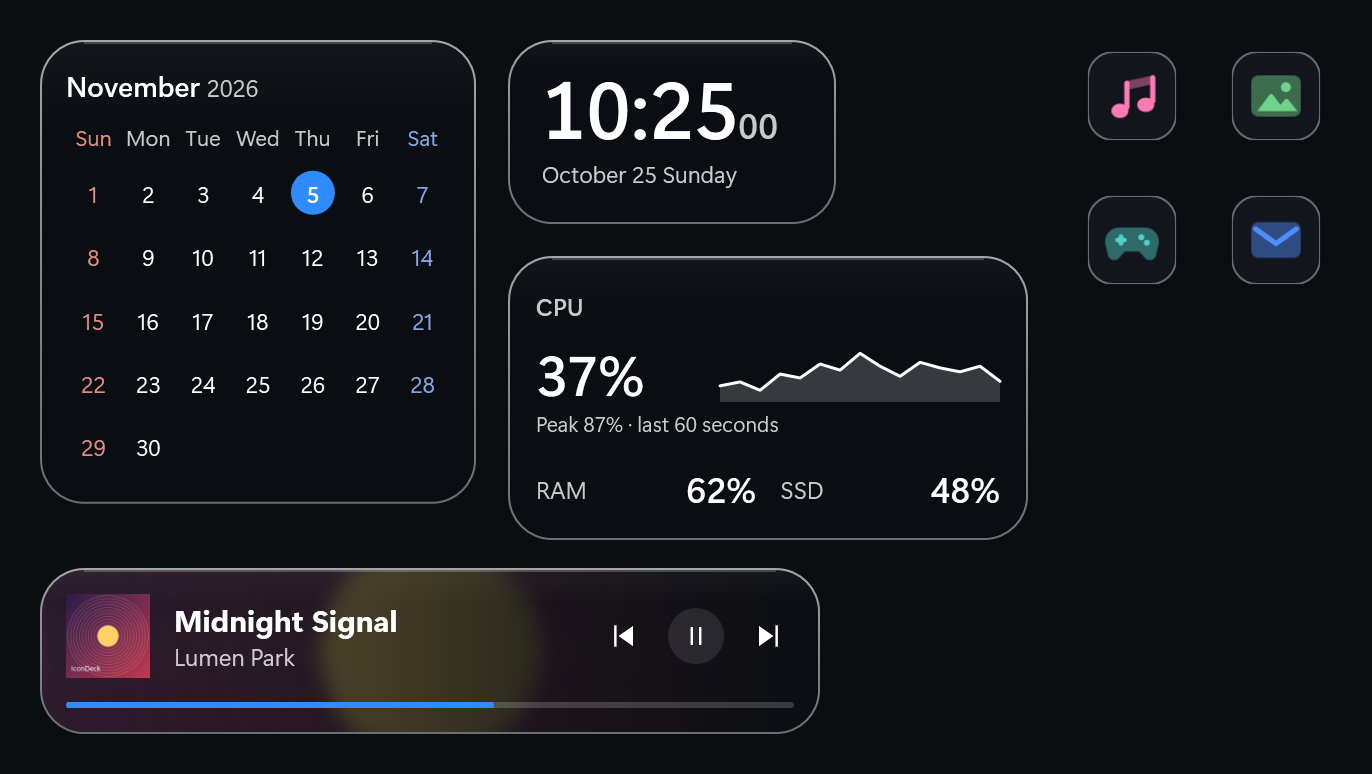
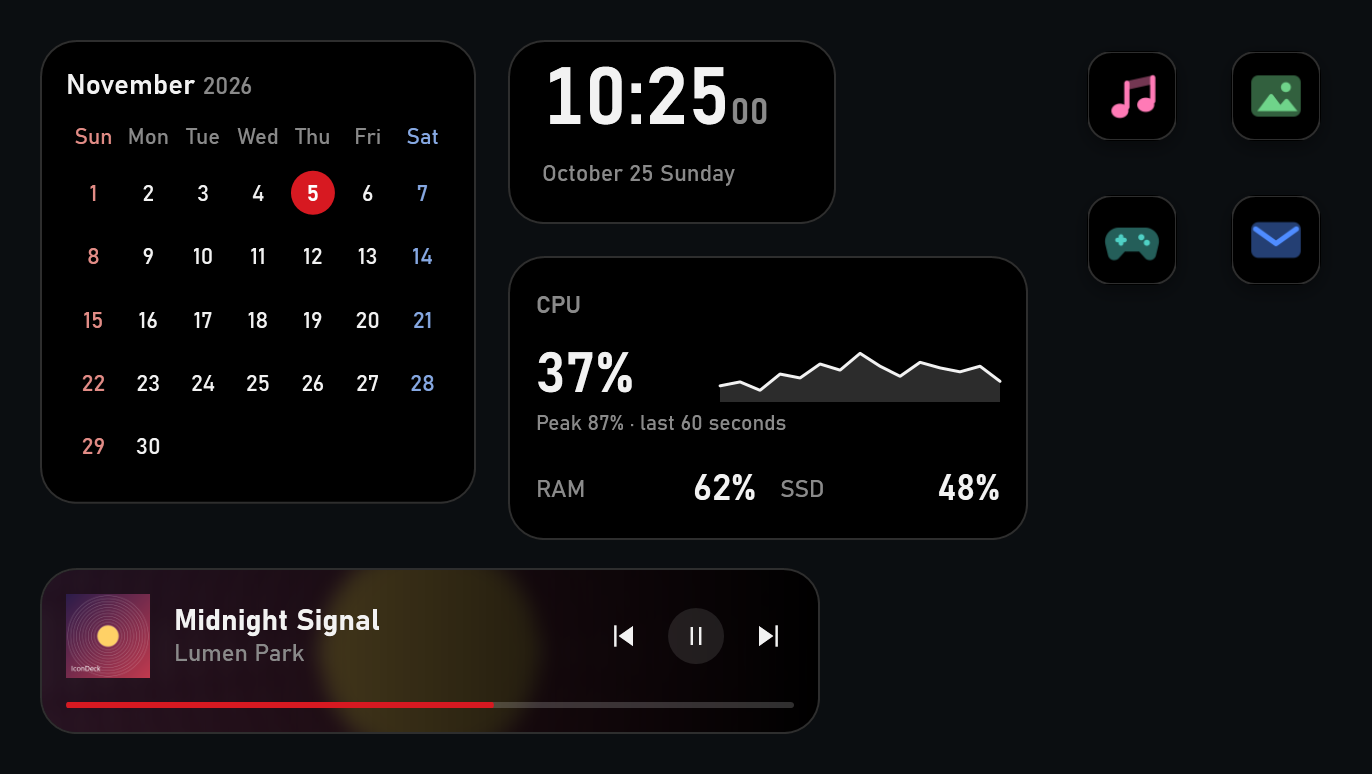
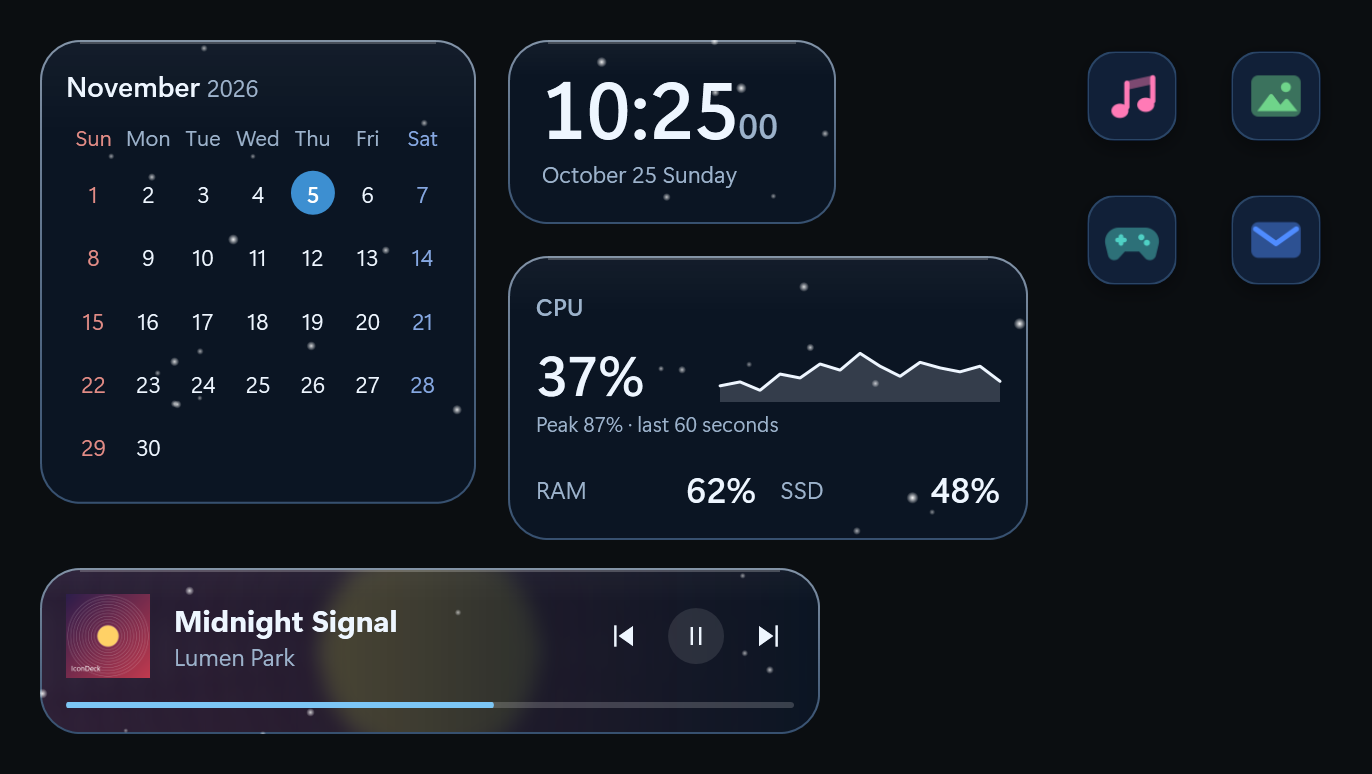
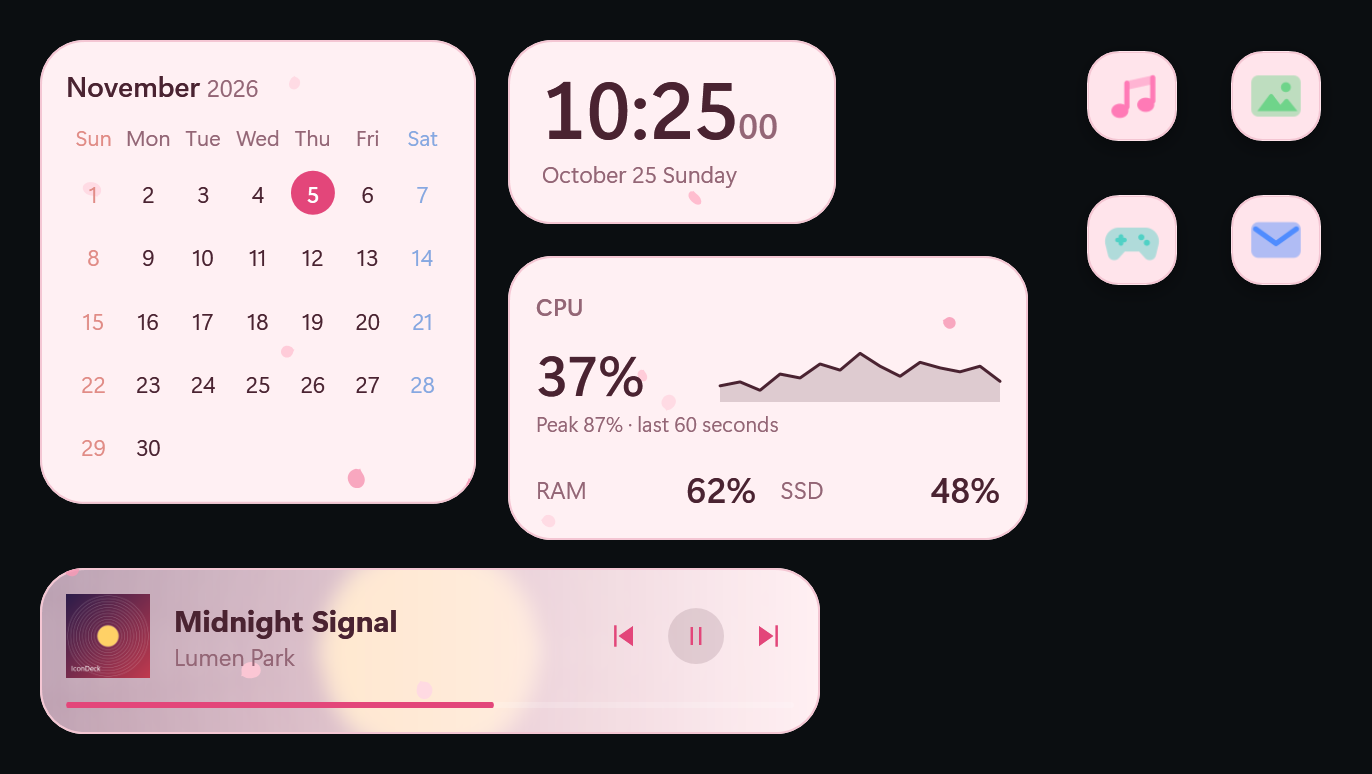
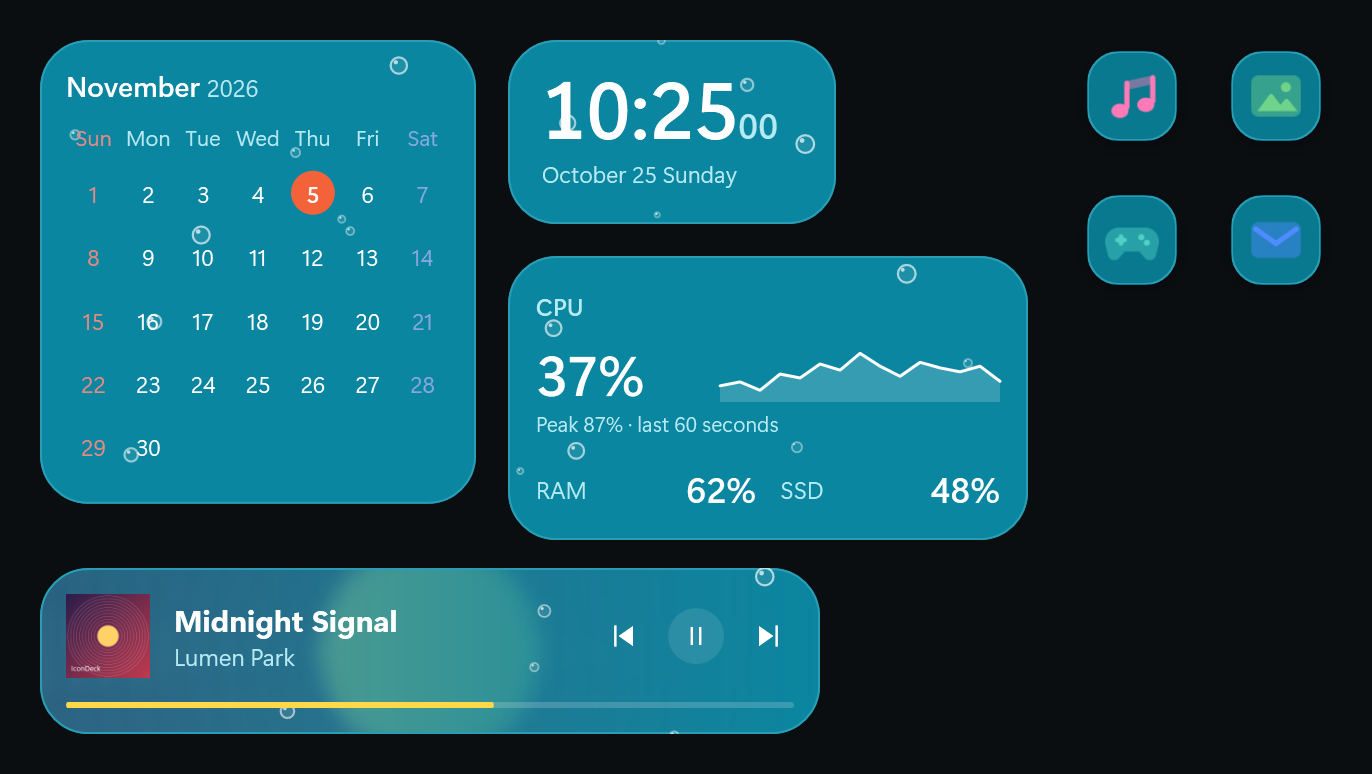
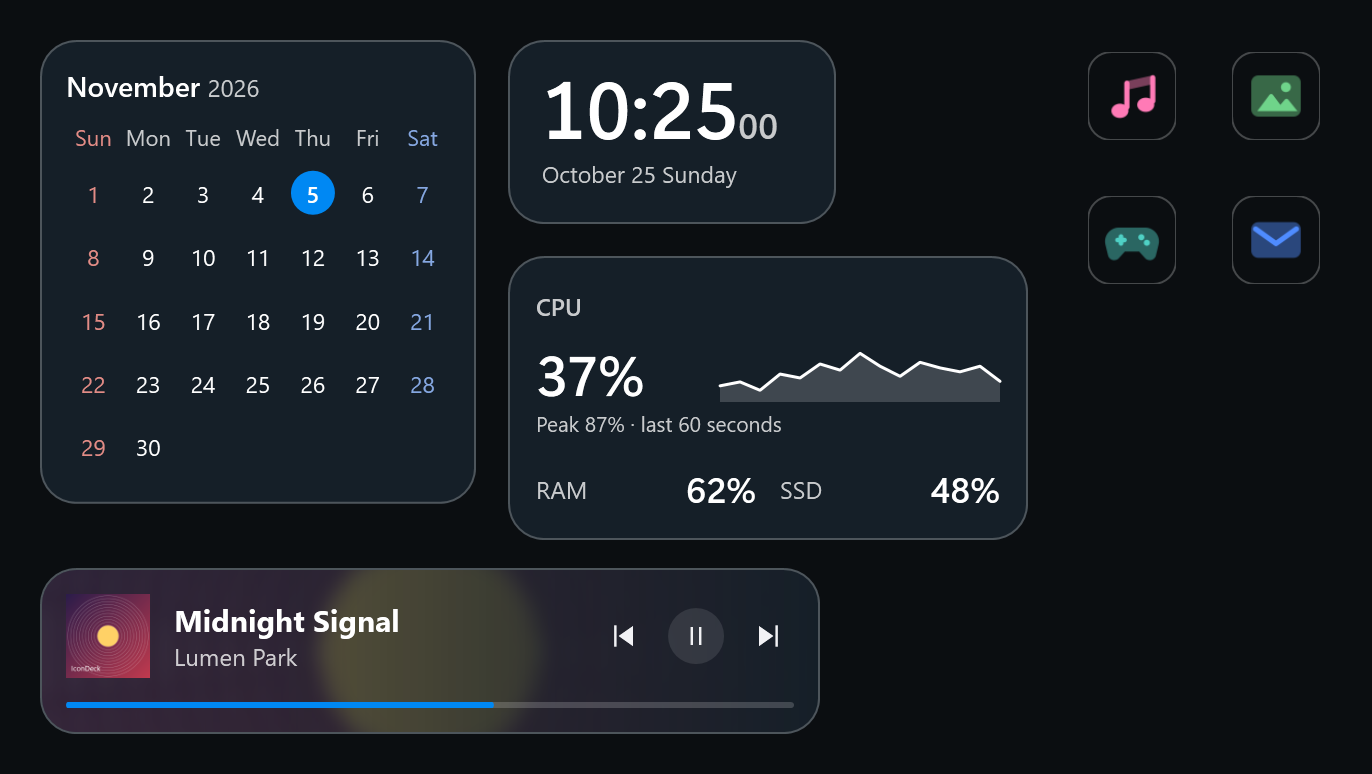
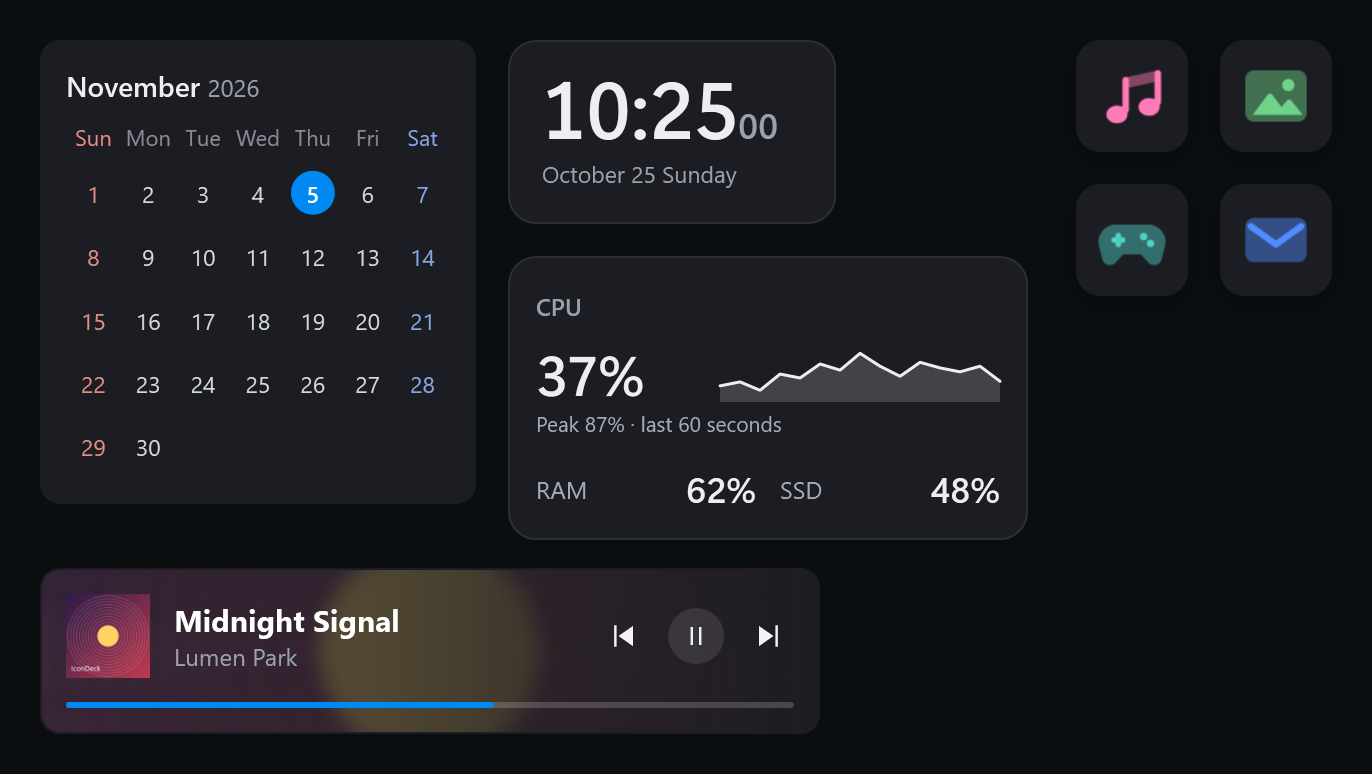
The same widgets and icons with only the theme changed.
Get themes other people made and try them right away. Bundle your own icons, widgets and widget-maker creations into a theme and upload it so others can use the same desktop. Downloaded themes work without Steam running.
Describe the widget you want to the AI chat you already use, and its reply becomes the widget. You can try the same steps as the app’s “Make with AI” right here. Free AI chats work too, with no payment and no key.
Paste it into an AI chat such as ChatGPT, Claude or Gemini and write the widget you want at the very bottom. For example: “a neon-style clock and date with a CPU bar below”.
Open ChatGPTOpen ClaudeOpen Gemini
Copy the AI’s whole reply and click this, or paste it into the box below. Even if explanations are mixed in, only the widget part is taken.
In the app, paste the same reply with “② Paste the reply” under “Make with AI” in the widget maker, and it goes straight onto your desktop. View on Steam
Paste the AI’s reply
and the widget appears here.
The reply you paste is read only on this page and is not sent anywhere. IconDeck accepts only the features in the guide, and the guide contains none of your data. The web preview may look slightly different from the app.
Widgets made with the widget maker. Let AI make them, or build them yourself by connecting information like time, weather and CPU to text, shapes and pictures. Click one to open it in the preview above.
It pauses during games and videos.
Widgets on a covered monitor pause too.
Style the taskbar on each monitor.
Switch layouts with one shortcut.
Every settings change can be undone.
It is meant to stay on all day, so it is built to run light. Widgets can pause or hide while a full-screen game or video is on, and widgets on monitors covered by windows pause on their own. On battery power, motion is reduced. Memory use is about 200–400 MB, depending on how many widgets are on. The taskbar can be hidden, transparent, translucent or blurred on each monitor, and scenes save layouts for work, rest or streaming that you switch with a shortcut. Multiple monitors are supported, and settings are backed up automatically once a day.
No. IconDeck doesn’t touch the Windows desktop itself; it shows its own windows on top. Quit IconDeck and your original desktop is just as it was.
Follow the four steps at the top of the manual: bring in your Windows desktop icons, hide the original ones, match their backgrounds at once, then group them into folders.
No. You copy and paste the guide, so free AI chats work. You don’t need to put an AI key into IconDeck either.
Yes. Open “Make with AI” in the app’s widget maker and paste the same reply with “② Paste the reply” to put it straight on your desktop. The site’s preview may look slightly different from the app.
No program can show windows over an exclusive full-screen game. You can set widgets to pause or hide while a game or video is on.
No. There are no accounts, usage statistics or ads, and error reporting is off. It connects directly to a service only when you turn on weather, live notifications or calendar subscriptions.
Windows 10 (2004 or later) and Windows 11, 64-bit. It is available in 32 languages.
Updates come through Steam too.